UI Configuration
In this guide we will explain several concepts important to making your own UI and some tips on how to accomplish them. This isn't meant to be an addon list or a list of specific settings you need to turn on, the goal here is that you understand why certain ui elements are positioned the way they are and how you can build a very efficient one customized to yourself.
Resetting Your UI
If you are planning to start fresh going into Midnight, it might be a good idea to clean some folders on your wow installation. These contain data about your addons, logs, times your wow crashed, and things like that. Most of these aren't needed for the game to run and the few that are will get automatically reinstalled fresh from battle.net the next time you try to start the game.
Removing these folders is as close as you can get to reinstalling wow from scratch without actually doing it, and if you don't plan to carry forward any addon or setting into Midnight this is a good way to clean up everything.
Inside your World of Warcraft/_retail_/ folder, these can be safely deleted:
- Cache
- Errors
- Fonts
- GPUCache
These folders can also be deleted, but it would be recommended that you either only delete parts of them or save a copy before doing it:
- Logs: You might have some files here called
WoWCombatLog-####_####.txtthat can be quite large in size. These are the saved combat logs that get uploaded to WarcraftLogs, if you don't plan on using them anymore or already uploaded them you can delete them. If you use the Raider.io or WarcraftLogs apps to automatically handle logging you might also have a folder calledSomethingLogsArchive, some of your older combat logs might be inside those folders and also be using a lot of space. Deleting big, old combat logs is the important part of cleaning up this folder. - WTF: This folder contains your specific settings for each of your addons, this is where the option you select are saved so they persist between sessions. Because our goal is to start from scratch, you can delete this folder to remove all the saved settings of your pc. You might want to save a copy of this folder somewhere else, just in case a specific addon remains functional and you want to restore what you had before.
- Interface: Here is where the code of your addons lives, there is nothing specific to you here only the files the addons need to work. Anything you delete from here can be downloaded again from the same source you originally got it from and nothing would change. While there are some Blizzard addons here that are part of the default ui, those are automatically downloaded when you start the game if the folder doesn't exist, so it is safe to delete it completely but you might want to save a copy just to keep a list of what addons you had installed before.
Outside of _retail_, on the Data folder there are also a couple of things that can be deleted. These start getting filled with unnecessary files after several updates and removing them can clear some space. It is recommended that you have your Battle.net closed during this step. You can also skip these if you prefer.
- Data/indices
- Data/config
Some Addons Are Bad
While the default ui has almost all the things you need to play decently well, there are definitely still some things that you do want addons for. As much as i really want everyone to give the default ui a fair chance, the reality is that some people just think its very ugly and can't find a way to make it work.
There is a problem however: Midnight has been a big shakeup in the addon space and with it came a big host of new addons promising to solve some of the old issues that established addons solved but were at risk of no longer being supported.Some of these new addons are very good and designed from the group up with the new limitations in mind, but some are honestly just trash made mostly with AI that have a real chance of causing you a lot of errors and having you end up in a situation where the author just can't update it anymore or can't help you troubleshoot because the AI they used to code it got stuck.
Several proper ways of doing things have been removed, which lead to some less than ideal developers to make brute force solutions that aren't optimized at all and will probably cause your game to significantly slow down. The more experienced devs take their time doing real solutions which means their updates take more time, while the first-to-market vibe coded options get more popular just because they are out there first. Try to avoid low effort options that might break later, go as default as you can when possible and look for established solutions with known good maintainers if you plan to replace a very key and important element of your UI.
Good Default Raid Frames
There are a few things to keep in mind when setting up your raid frames:
- You want to have them near the center of the screen so you can look at them without taking your eyes too far away from your character
- They shouldn't be so big that they block important elements
- You need to be able to get the information you need to make decisions at a glance
- You should be able to differentiate between players very quickly
- You should be able to aim mouseovers very quickly
You need to find a frame size that is comfortable for you, and what works for someone else won't necessarily work for you. Play around with colors and sizes until you land on something that fits these criteria and you are good looking at for long periods of time.
Here is an example of my settings:
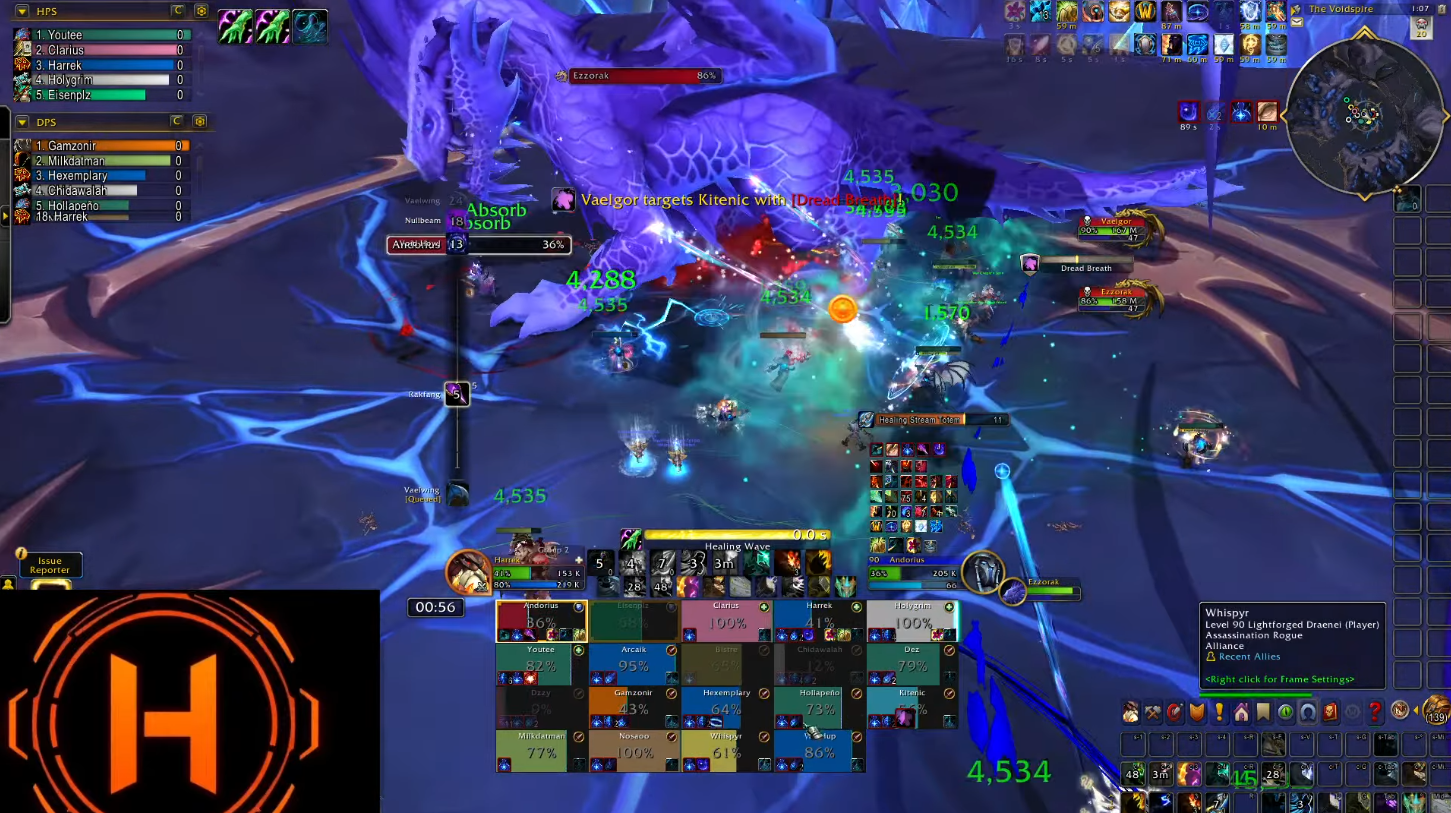
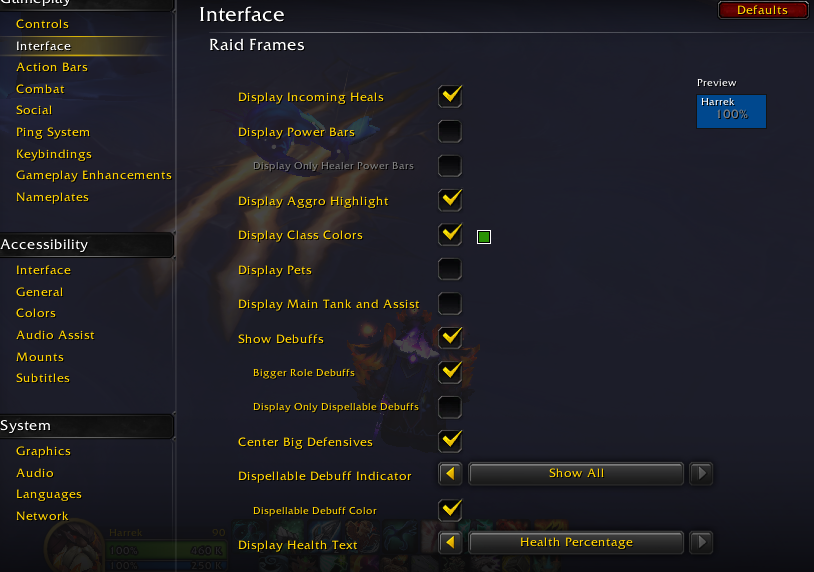
Some people can't play without class-colored frames while some others think it is terrible. The important part is that you find what works best for you and lets you play better. If you aren't sure, you have to try it for yourself.
As for buffs and debuffs, similar logic applies. You want them big enough so that you don't need to focus too hard to notice what is going on, but not so big that they cover the bars and hide information from you. You can control the size of buffs on the default ui with a slider by right-clicking the party or raid frames on edit mode, don't need an addon for that. As a small aside there is currently a big issue with the aura icons on the default frames in Midnight: they are solid. Mouseovering an aura will display its tooltip, and while in this state the game doesn't consider you to have your mouse over a player so mouseover healing won't work.
I have made a very small addon that solves this issue. Obviously i highly recommend getting it.
Cooldowns And Buffs
You need to be able to properly see your cooldowns and active buffs near the center of the screen to make gameplay decisions fast during combat. The default solution for this for Midnight is the cooldown manager. In general this is fine solution and will be good enough for the majority of players, as long as you position it in a good spot and take some time to make sure your important spells are properly sorted into the groups.
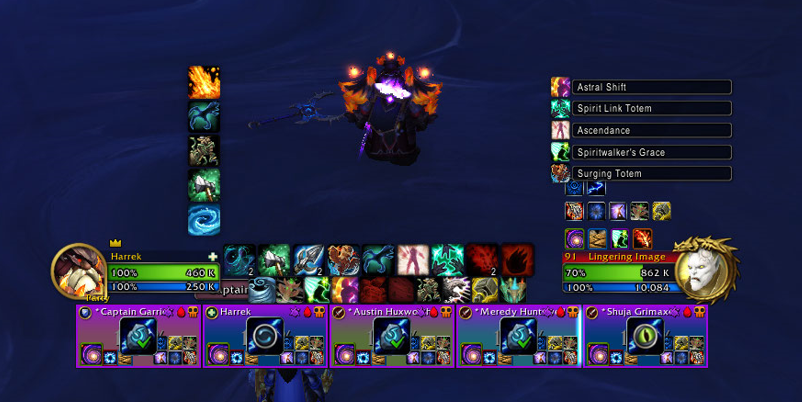
You have two groups for cooldowns and two groups for auras. The cooldowns are split into "essential" and "utility" and are simply two sets where you can modify their orientation, number of rows or columns, size, padding, opacity and if you want to display them always or only in combat. For the auras there is a little bit more options as one of the groups shows them as bars instead of icons but similar logic applies.
When deciding what spells and buffs to track, follow these guide lines:
- Focus on decision making, some spells being available or some buffs being active change what decisions you make for your next cast, those are the most important. For example: To spot heal someone, i press X spell if i have buff A, but if i don't have it i cast spell Y instead, this means buff A is very important to track
- Some things might seem important at first glance but are actually irrelevant, you want to avoid irrelevant information so think about what really matters. For a restoration shaman it is important to cast Unleash Life often, but it is not very important to consume it with specific spells, so the buff is not really relevant as you will simply consume it with your normal casts
When deciding on size and positioning, remember the general rule of keeping things near the center of your screen so you don't need to move your eyes a lot to get information, but you also want a clear view of the direct surroundings of your character. You need to see your feet and a bit behind your back, or you will die to orbs coming from behind your action bars.
There are still some big issues with the Cooldown Manager though. One of them being the lack of center anchoring. Most weakaura packs that the cooldown manager aims to imitate are put in the center of your screen and grow or shrink equally on both sides as things are added or removed from them, but this is not possible with the cooldown manager. The only options available are growing to the left or to the right, which ends up being very annoying.
Another problem with it is the lack of options about what your icons display. If you have an active ability that also applies a buff and you put it on your cooldown manager, the icon will show the buff while it is active and won't tell you the cooldown, even if you don't care about aura and tracking the cooldown is more important.
An alternative option is to use action bars. Some people already simply watched their icons in the action bars instead of using weakauras for tracking, you can get something workable by putting an action bar that you aren't using near the middle of the screen and dragging spells that you want to see the cooldown of there. There won't be any aura tracking on them just pure cooldowns, and the advantage of using a different action bar is that you don't need to put filler spells that have no cooldown in there.

Nameplates
The default nameplates have seen huge changes for Midnight. The situation before was very basic, awful looking and with almost zero customization for them, while for Midnight the new nameplates are much better. You have way more control over how they look and what information they show. There are still several pain points where addons can help (and some where they can't) but it is definitely a significant leap from what we used to have.
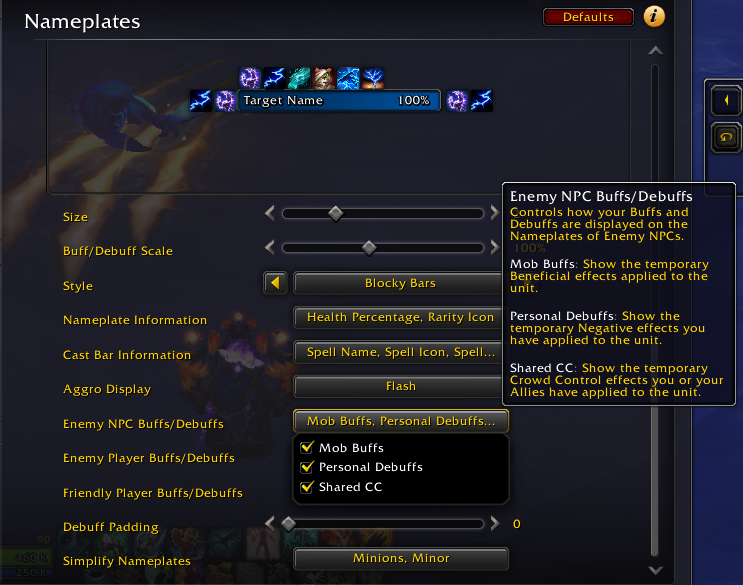
This is an example of my current settings for nameplates. Keep in mind the same rules as before: Add only information that will help you make decisions, don't overload your UI because if it has a lot of useless icons you will start ignoring them and it defeats the whole point. Nameplates are not as important for healers as they are for other roles specially now that most specs don't have an interrupt but they can still be a very good source of information at a glance. Restoration Shamans do want to put extra emphasis on being able to see enemy cast bars very well.
Friendly nameplates might be the one space that has actually improved going into Midnight. While some people think these are completely useless and others find them very helpful, before now friendly nameplates where very very limited and you could do almost nothing to customize them.
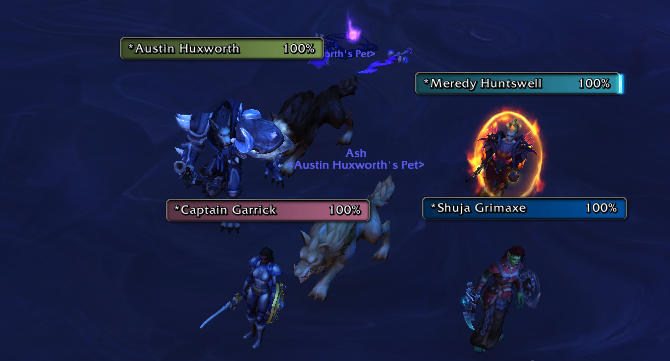
You can make friendly nameplates look almost exactly like enemy nameplates, but that might not be ideal and can lead to confusion. It is important to note that the goal of friendly nameplates and enemy nameplates is very different: For enemy nameplates you want information about the unit, for friendly players that information should be on your group frames instead, and the nameplates should give you the one bit of information frames can't: positioning.
Because nameplates are attached to the character models and move with them, friendly nameplates are the only way to have a consistently sized piece of user interface that shows where other players are standing relative to you. One very important setting to achieve this correctly is the Nameplate Stacking behavior.
Nameplate stacking refers to how the nameplates act when close to each other, overlapping nameplates simply puts them one on top of the other and the nameplate at the front will cover the nameplate behind while stacking nameplates will move them around so they stack one above the other so you can always see all of them. For enemy nameplates stacking is the way to go as it provides the most clear view of the enemy mobs, while for friendly nameplates overlapping is ideal, as that keeps the nameplates exactly where you want them above the character model.
It is okay if you find friendly nameplates are not for you, some people like them and some people don't, find what works for you.
Where Default UI Fails
The default UI does have some glaring issues that need to be solved, it can get you most of the way there but i don't recommend using it exclusively with zero addons just because there are a few key tweaks that can heavily affect your performance.
Raid Frames
For the raid frames i already mentioned the one current issue, not being able to click through the buff and debuff icons. Any raid frames addon should be able to fix this and also once again here is my very small solution if you prefer to remain on default raid frames.
Cooldowns And Buffs
The cooldown manager leaves much to be desired. It is fine and can be good enough to suit most of your needs but the moment you start adding any kind of complexity like tracking trinkets or you don't care about buff tracking for certain spell it falls apart. For any finer control of it you will need an addon and the truth is there are very good addons that remake the cooldown manager from scratch like ArcUI.
Nameplates
The one big issue with the nameplates is coloring. Some very basic nameplate coloring according to certain unit information can still be done, allowing you to color casters different from melee mobs and differently from mini bosses. The default ui has no support for this at all, while all nameplate addons can handle it. For a very good alternative new to Midnight you can check Platynator.
What The Default UI Can Do
A lot of people have misconceptions about what the WoW default ui can do, mostly because we have been using addons for so long that we never cared to check what was added over the years because there was no point. This is a good time to make sure some of the things you really wanted addons to do haven't become part of the default ui since the last time you checked. So lets list a bit of what you can do baseline without any addons:
Party and Raid frames:
- Have your party frames show in the same style as raid frames
- Different position and sizes for party and raid frames independent of each other, without having to change profiles
- Horizontal or vertical party frames
- Sort members by role, alphabetically, or by the order they joined
- Configure max raid size (not any number but between 10, 25, and 40)
- Keep different groups together on a raid
- Custom row or column size
- Control buff and debuff icon size (but not independently of each other)
- Use class colors for health bars, or use any solid color you pick
- Show health percentage, health remaining or health lost as status text on the frames
- Build-in mouseover. Spells on your action bars automatically work by mouseovering
- Click-casting settings (this can be a bit clunky with extra mouse buttons)
Cooldown Manager:
- Show cooldown and buff duration of spells
- You can't pick any spell, it is a pre-configured whitelist, but you can decide which ones show and where
- Two groups for cooldown abilities, both rows of icons
- Two groups for auras, one as icons and one as bars
- Add sound alerts when spells become available or go on cooldown, or when auras are applied or removed
- Automatically show and hide icons depending on talents selected
Nameplates:
- Six style templates
- Pick the values shown in the bar
- Pick the data shown in the nameplate's castbar
- Some filtering of buffs and debuffs
- Simplified nameplates for selected unit types
- Separate stacking behavior for enemy and friendly nameplates
Action bars:
- Between one and eight action bars
- Scale, orientation, slots, amount of rows or columns, padding, displaying always/in-combat/out-of-combat/never, all for each bar
- Lock action bars, pick a modifier key so slots can only be changed while pressing it
Bags:
- Combine bags into a single big one
- Search bar
- Assign specific bags to specific item types
- Sort bags button
Some of these things sound very basic, and most them definitely are, but these are a lot of things that we needed addons for in the past because the default ui didn't offer them in any way. If any part of this list is what drove you to installing an addon to replace something before, this is a very good opportunity to give it a new chance and see if you can get away with one less addon. If you find that it just isn't good enough you can always look for a new solution later on.